 Pingtail
This page describes the client upload page in Pingtail exactly as your client will see it: the email, the page behind the button, the phone camera, and what happens when they come back later. Your clients are not accountants and did not choose your software. Every step you put in front of them, such as an account, a password or an app, is a reason to do it later. So the client side is one email, one link and one page.
Your client's first minute
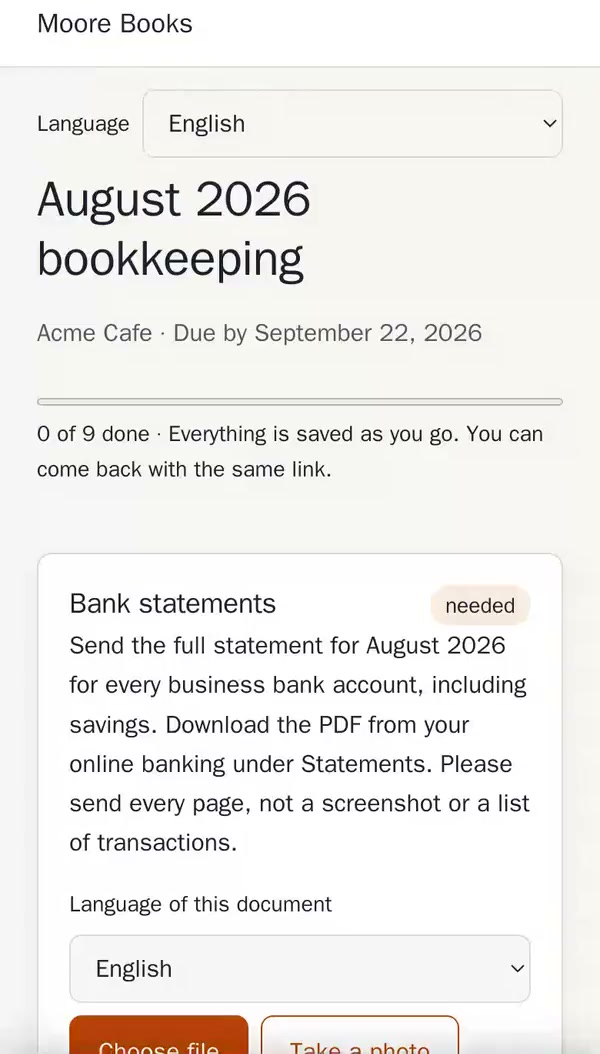
- Mira Chen at Acme Cafe gets an email from "Moore Books via Pingtail" and taps the button.
- The page opens on her phone. There is nothing to sign up for and nothing to install.
- She reads the first item: the August bank statement, with a note on where to find it.
- She picks the PDF from her phone. The page checks it in seconds and accepts it.
- The next item is a paper receipt. She taps "Take a photo" and the camera opens.
- She does not have the third item with her, so she closes the page. Her two items are saved.
- That evening she opens the same link again and finishes the list.
What your client receives
One email, sent as "Moore Books via Pingtail", in the contact's language: English, Spanish or French. It greets the contact by first name, says why they received it, and has one button, in your firm's colour on paid plans. If your client replies, the reply goes to your own inbox. Two small links at the bottom, "Stop reminders" and "Report this request", give your client a way out that does not involve marking you as spam.
If you prefer not to use email for a client, copy the link and share it yourself.
What the client upload page shows
The link opens one page for this one request. It lists the items you asked for, and each item has instructions: what to send, for which period, and where to find it. Items are required or optional. An item is one of three things: a file to upload, a yes/no question, or a short answer. Your client works down the list in any order.
Each upload is checked at once, on the same page. If the file looks wrong, for example the July statement for an August request, the page says so and asks your client to look again. They can always answer "This is correct, send it anyway". The detail is on the upload checks page.
Phone and camera
The page works on a phone, and "Take a photo" opens the camera, so a paper receipt or a letter does not need a scanner. Photos are resized in the browser before upload. A photo that is too small or too dark is refused before upload, so your client can take it again while the receipt is still in their hand.
What if the link is forwarded?
There is no account, no password and no app. The link belongs to one request and opens nothing else. When it is opened on a new device, the page asks for a 6-digit code sent to the contact's email. So a forwarded link is not enough on its own to open the request. For your client it is one extra step, once per device.
For the client who asks "what did I send you?"
Every firm has the client who cannot find the email, or who wants to see the whole year before a meeting. They can open "My documents" and get a place of their own, without you setting anything up.
Your client types their email address and gets a sign-in link. No password, nothing to install, no account for you to create or manage. Behind it is every request any firm has sent to that address, what they uploaded against each one, and what is still open. They can open any of them and carry on, and the page mints a fresh link so the device is trusted from the first tap.
It is optional, at both ends. Nothing changes for the client who never signs in: the link in the email is always enough, and it always will be.
Coming back, saying no, and replacing a file
Everything is saved as your client goes, and the same link works again. Two items today and the rest next week is fine; reminders list only what is still missing.
Sometimes an item does not exist. Acme Cafe had no loan this quarter, so there is no loan statement. Your client can mark the item "not applicable this period" with a reason, and you approve or refuse it.
If you send a file back, your client gets your note by email at once and uploads a better file through the same link.
"Please take that off your system"
Your client can remove or replace their own file until you accept it. After that, the file is your working paper, so they cannot delete it on their own, and neither can we.
What they can do is ask. From their upload page they send a deletion request, with a reason if they want to give one. It appears on your dashboard, with the client and contact who asked, and you decide: delete, or keep. If you delete, the files for that client go, and the only key with them. If you keep them, nothing happens.
That is the answer to the data-protection question a client sometimes asks in the middle of a close. The right to ask is real, the decision stays with the firm that has the legal duty to keep the records, and there is a record of both.
Languages, file types and size
- You set a language for each contact: English, Spanish or French. Your client can also change the page language.
- PDF, photo, CSV, Excel and Word files, up to 25 MB per file.
- A file that was already uploaded is refused with a clear message. Unsafe file types are never stored.
- Every file is encrypted before storage. Details are on the security page.
What your client never has to do
- Create an account or remember a password.
- Install an app or find a scanner.
- Finish everything in one sitting.
- Guess what "bank statement" means: each item says what, for which period, and where to find it.
- Wait a week to learn that they sent the wrong month.
- Keep getting reminders they do not want: one click stops them.
What the page does not offer is also worth knowing: there is no client chat, no permanent per-client link, and no mobile app. The quickest way to judge the client side is to be the client. Send a test request to your own email and upload the wrong file on purpose. The rest of the product is on the features page.