 Pingtail
This page explains the upload checks in Pingtail: what is checked, how, what your client sees when something looks wrong, and what the check cannot do. Most time lost in collecting documents is not the waiting. It is the second round, when a file arrived wrong and nobody noticed for a week. The check moves that discovery to the moment of upload, while your client still has the right file within reach.
What happens at the moment of upload
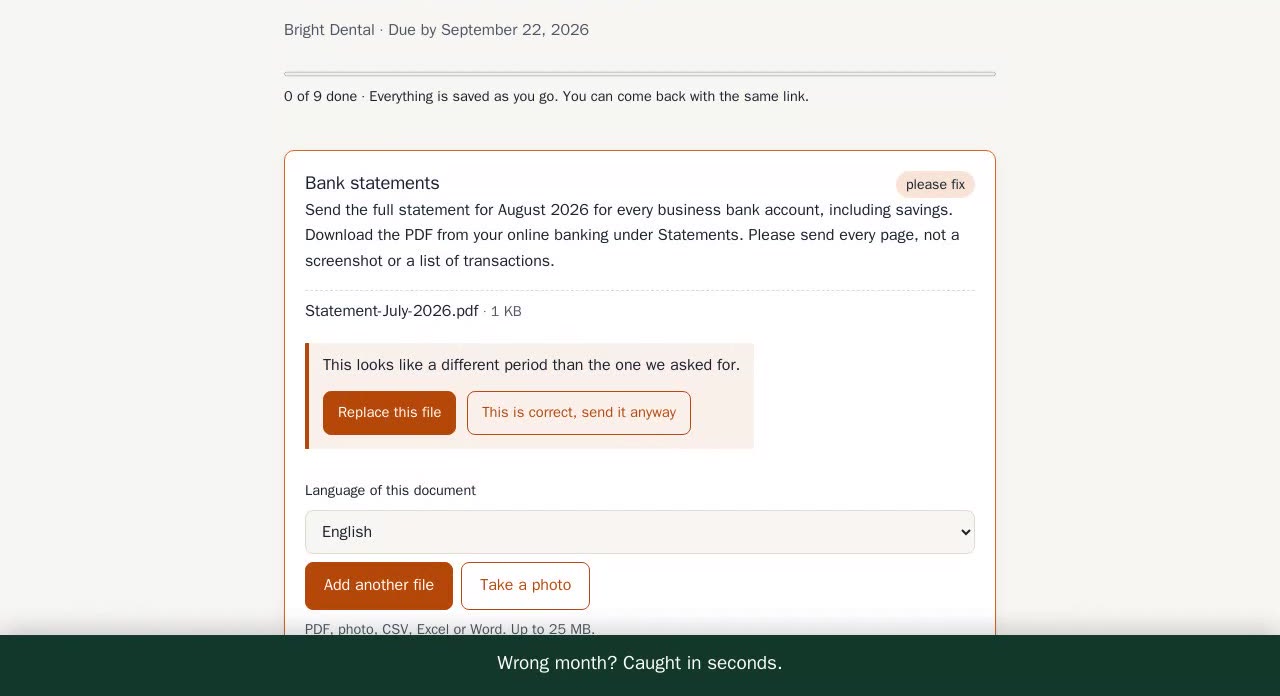
Moore Books asks Bright Dental for the August bank statement. Tom Reed opens the link, picks a PDF and uploads it. It is the July statement, because the two files have almost the same name.
- The file is checked at once, normally in seconds.
- The check reads the dates in the statement. They are all in July. The request is for August.
- The page tells Tom the statement looks like it is for a different period and asks him to look again.
- Tom uploads the August statement instead. It is accepted, and nobody at Moore Books wrote an email.
What the upload checks look for
These are the problems the check knows about, how each one is found, and what your client is told.
| Problem | How it is found | What your client sees |
|---|---|---|
| Password-locked PDF | Fixed rule: the file cannot be opened without a password | A request to send a copy without the password |
| Pages missing | Fixed rule: the document says "Page X of Y" and some pages are not there | A note that pages seem to be missing |
| Wrong period | Fixed rule: the dates in the file are not in the requested months | A note that the file looks like it is for a different period |
| Wrong tax year | Fixed rule: the year on the document is not the requested tax year | A note that the document looks like it is for a different year |
| Photo too small or too dark | Checked in the browser, before upload | The photo is refused and the client is asked to take it again |
| Photo too blurred | Fixed rule on the uploaded photo | A request to take the photo again |
| Not the document that was asked for | The document is read for its type and the periods it covers when the fixed rules cannot decide | A request to look again, or the file is passed to your firm to decide |
| Same file uploaded twice | The service recognises a file that was already uploaded | A clear message that this file was already uploaded |
Unsafe file types are never stored.
How the check works: three layers
Fixed rules run first, on every upload and on every plan. They cover the problems that need no judgement, such as a locked PDF or dates outside the requested months.
When the rules cannot decide, the check reads the document itself. It works out what kind of document it is and which periods it covers, and compares that with what the item asked for.
The last layer is a person at your firm. Nothing is final until you accept it.
Can the check reject a file?
No. It has three possible results, and "reject" is not one of them.
- Accept. The file matches the request. It still waits for your review.
- Ask the client to look again. The page explains what seems wrong and lets your client choose another file.
- Pass it to the firm. The check is not sure, so it leaves the decision to you.
A check can be wrong. A bank may print dates in an unusual way, or your client may have a good reason for sending a different document. If software could reject a file, a wrong check would block a client who did everything right. So only a person at your firm can send a file back, with a note that your client gets by email at once.
"This is correct, send it anyway"
When the check asks your client to look again, they always have a second choice: "This is correct, send it anyway". The file then goes to your firm with a flag. Your client is never stuck, and you see that they overrode the check.
You decide how much the check does
Firms differ. One wants every file stopped at the door; the next wants nothing said to a client without a person reading it first. The check is not a policy we impose on your firm, and none of this is buried: it is one card in your settings, and the owner or an admin can change it in a minute.
- Ask the client, or only warn you. On "ask", a file that looks wrong is questioned on the page while your client is still there. On "warn only", your client is told nothing at all: the file comes through and waits for you, flagged with what looked wrong. Nothing reaches your client in your firm's name that you did not want sent.
- Accept the clean ones for me. Off by default: every file waits for a person. Turn it on and a file that passed every check is accepted without a click, and only the questionable ones reach your review list. That is the setting that turns month end from a hundred clicks into a handful.
- Switch off the reading layer. If you would rather no document was read at all, turn it off. The fixed rules stay on, on every plan: a locked PDF, missing pages, dates outside the requested months, an unreadable photo. You lose the layer that works out what a file is, not the whole check.
- Stop a flag coming back for one client. When you accept a file the check had questioned, that same problem stops stopping that client next time. Bright Dental's bank prints dates in an odd way, you accept it once, and your client is not asked about it again.
What you cannot switch on is a check that rejects. That is not a setting, because the person who would be blocked by a wrong decision is your client, in your name.
Statements that cover several months
Some clients send one statement for a whole quarter. If the file covers several months and the requested month is one of them, it is accepted, and your staff see every month the file covers. It does not mark future months as received.
What you see in review
Next to each file, you see what the check found: the problems it flagged, the periods it read in the file, and whether your client overrode the check and sent it anyway. From there you accept the file or send it back with a note. A file that was sent back appears in the next reminder together with the missing items.
Limits
- Each plan includes a monthly number of upload checks, shown next to the price on the pricing page. Those are the checks that read a document. The fixed rules always run, on every plan, and are never counted against that number.
- A check can be wrong. When it is, nothing is lost: the file still reaches you, with a flag.
- Files are encrypted before storage. Details are on the security page.
To see all of this yourself, send a test request to your own email and upload the wrong file on purpose. The rest of the client side is on the client upload page.